blog.pleb.in

Life of Apps

Showing posts with label android. Show all posts

Nadget New Version Released!

I released a new version of Nadget in the Google Play Store. It now supports notifications allowing the user to choose a time to be notified; on selecting the notification, the app opens and gets refreshed. There a few UI changes, a new icon and a rewritten drawer.

Check out the screenshots below.

The new icon designed using Figma, an excellent online graphics editor with easy-to-use layers support.

Main screen with a shortcut menu to change to dark theme and get to settings


Notifications


The redesigned drawer


Promoting Android Apps for Free

I always thought that realizing an idea into code was the toughest part of app development. Having completed development and published the app in the Play store, I realize that promoting an app is no mean task. With little or no promotion, the app is just a drop in the ocean in the Play store. More so, if you are offering an app with no ads. In the past few weeks, while I have been trying to publicize my app  for free, I found the following resources useful:

  • cpimobi.com gives 50 free installs of your app, thereafter you would be charged per install. This is a good place to start with.
  • There are many review exchange sites such as ReviewsMotion and Favorr that help developers review each others' apps. Developers join these sites and list their apps. You select an app to review, use it and publish a review in the Play store. The user whose app was reviewed is notified and does the same. 
  • XDA is considered a forum for Android experts. Several developers visit the forum to list and check out apps. You can create a thread and submit your app there 
  • Appszoom is an app aggregation site that lists the apps with a good summary page 

Apart from the above, do not forget to list or promote your app in the usual social media sites: Twitter, Facebook and Google Plus.
  • Send out a tweet announcing your app: if you have many followers, then this might be effective 
  • Facebook and Google Plus Android groups: there are too many of them, pick the one with the most recent activities and post there
  • If you have developed using Android Material design, you can submit it in the Google Plus Material Style Apps group. If you have joined MaterialUp, a site for promoting Material design, listing your app in this group might lead it to be featured in the site. 

Never forget to track threads and comments in the groups and forums where you have your app listed. People hate non-responsive developers who are cold to bugs or feedback.


Nadget - Curated Indian Gadget & Tech News


After months of development, I finally completed and published my app, Nadget on Google Play. The app offers a selection of feeds from Indian gadget and technology sites. The UI follows Material design guidelines and provides for an uninterrupted reading experience.

Posts can be shared or saved for later reading. I have also integrated with Dropbox to export the list of selected feeds and saved articles in case you are moving to a new device or restoring from a hard reset. For users who would like to suggest other feeds, I have included an option to do so.

I have not included any ads as this was developed as a hobby. The app is available for download on Google Play.


Google Play Android App Publishing Tips

Coding done, testing done, testing on multiple devices done. What next? Publishing the app on the Google Play store. Publishing on the Play store is not a complex process but it is helpful to be prepared about a few things. Publishing is done through the Google Play Developer Console and the process is straightforward.

  • After paying the fees of 25$, you enter the app details and upload its APK file. The device compatibility of the app will be shown.
  • The next step is the most important: store listing. This is how the world will see your app. 
    • Fill the short description - keep it catchy to interest the user; if you can't, then keep it short 
    • Fill the full description - while there is no fixed format, it is better to enter bullets here instead of paragraphs. There is no automatic bulleting so add hyphens at the beginning of each point. As with screenshots, remember to keep the important points at the top 
    • Upload the app's screenshots - make sure to highlight the main screen and the best parts of the app (if you are building for tablets, you have to upload separate screenshots in tablet form)
    • Upload a high resolution icon (512x512) - It is never enough to emphasize the importance of a good app icon in high resolution as this is the face of the app, even before it is downloaded. Roman Nurik's Android Asset Studio was used to create the app's launcher icon and it generates icons similar to Google's own apps
    • Upload a feature graphic in JPG or PNG of size 1024 x 500 dimensions - be creative and add any messages that you want to highlight; this is like a banner ad. Norio's Android Feature Graphic Generator is easy to use and was used to create the feature graphic 
    • Upload a promo graphic in JPG or PNG of dimensions 180 x 120- a smaller one which is probably used in older Play stores
    • Upload a promo video uploaded to YouTube - a simple way to create a promo video is using the adb. Connect your device to a PC, then on a command shell type the command: adb shell screenrecord /sdcard/videos/demo.mp4 and run your app on your device. A video of your screenshots will be recorded and stored in the location mentioned.The video should be uploaded to youtube and the link should be provided. Note that the full youtube link such as https://www.youtube.com/watch?v=cpUPzmlh7PA should be entered instead of  https://youtu.be/cpUPzmlh7PA. This is important otherwise your video will not appear on Play.
    • While the video and promo graphic are optional, it is important to upload them as they help in marketing the app. 
  • If you are app supports multiple languages, do the steps above for each of the language that it supports 
  • The next step is to complete a questionnaire on the content of the app which generates the rating of the app. 
  • Finally choose the category for the app, fill your contact details and submit.

My app Nadget, was live within a few hours of publishing of it. Some users have said that it could take a few days too. This is dependant on the permissions that the app requests and possibly its content rating. In most cases, the app should be live on the Google Play Store in less than half a day. But make sure you spend time in creating the promotional graphics so that your app gets the attention it deserves in the Google Play store.


Extracting the Main Image from an Article/Web Page

For an app that I am building, I have been looking to extract the main image for an article from a webpage. Search on the net indicated that JSoup was probably "the" library to do it. But it too does not mention how to get the main image associated with the article. Any modern webpage has several images in it - advertising banners, site logo, social media sharing icons, article related images and more advertising. How do we extract the main image from an article? I was not willing to think and write code to do this; partly because I am lazy and also because I knew that this was done before and code should be available for this.

My initial search took me to Mashape. Searching through the APIs there, I found the free Article Analysis API by adlegant. While not required, I also decided to use the Unirest Java library by Mashape to access the API. My initial tests with the API were all positive, a simple call to the API endpoint with the URL to be analyzed and the credentials provided by Mashape was all that was required. It provided a JSON response similar to the one below:


{
  "author": [
    "Verge Staff"
  ],
  "categories": [
    "economy, business and finance"
  ],
  "cleaned_text": "Black Friday is right around the corner, and there are plenty of great deals to be had. We've been covering the deals for weeks now, but if you want to cut through the mess and just score the best deals you can find, you've come to the right place.\n\nAs to be expected, this year there are lots of deals to be had on TVs small and large, 1080p to 4K. You can also get a great price on last year's iPads, which are still better tablets than pretty much anything save for this year's iPads. If you're in the market for a smartwatch or fitness tracker, you can save some money on some really great options this weekend. And if you want to pick up a laptop or new headphones, there are deals to be found too.\n\nKeep in mind that the best deals won't last long and many of them are limited to Friday itself (or in rare occasions, Thursday too). To win the Black Friday game, you have to be aggressive and quick, there's no time to sleep when deals are to be had. That said, here are the 20 best Black Friday deals this year. Warm up your credit cards and get a good night's sleep, it's time to make the consumer machine work.",
  "date": "2014-11-26T19:15:45Z",
  "entities": [
    "Warm",
    "Black",
    "TVs"
  ],
  "image": "https://cdn1.vox-cdn.com/thumbor/IkFo5ddhDEXA2t_mUfezCdvGbUI=/35x0:606x381/1280x854/cdn0.vox-cdn.com/uploads/chorus_image/image/44236174/black-friday-branding-jc3.0.png",
  "language": "en",
  "link": "http://www.theverge.com/2014/11/26/7292895/best-black-friday-deals",
  "main_body": "<div class=\"m-article__entry\" gravityScore=\"204\" gravityNodes=\"3\"><p>Black Friday is right around the corner, and there are plenty of great deals to be had. We've been&#160;covering the deals for weeks now, but if you want to cut through the mess and just score the best deals you can find, you've come to the right place.</p>&#13;\n<p>As to be expected, this year there are lots of deals to be had on TVs small and large, 1080p to 4K. You can also get a great price on last year's iPads, which are still better tablets than pretty much anything save for this year's iPads. If you're in the market for a smartwatch or fitness tracker, you can save some money on some really great options this weekend. And if you want to pick up a laptop or new headphones, there are deals to be found too.</p>\n \n&#13;\n<p>Keep in mind that the best deals won't last long and many of them are limited to Friday itself (or in rare occasions, Thursday too). To win the Black Friday game, you have to be aggressive and quick, there's no time to sleep when deals are to be had. That said, here are the 20 best Black Friday deals this year. Warm up your credit cards and get a good night's sleep, it's time to make the consumer machine work.</p>&#13;\n &#13;\n &#13;\n &#13;\n &#13;\n &#13;\n &#13;\n \n       \n\n    </div>\n  ",
  "summary": [
    "That said, here are the 20 best Black Friday deals this year.",
    "Black Friday is right around the corner, and there are plenty of great deals to be had.",
    "We've been covering the deals for weeks now, but if you want to cut through the mess and just score the best deals you can find, you've come to the right place.",
    "Keep in mind that the best deals won't last long and many of them are limited to Friday itself (or in rare occasions, Thursday too).",
    "To win the Black Friday game, you have to be aggressive and quick, there's no time to sleep when deals are to be had."
  ],
  "tags": [
    "best deals",
    "laptop",
    "expected year",
    "said 20",
    "sleep",
    "best",
    "nights",
    "20",
    "tracker",
    "black",
    "friday game",
    "time make",
    "save",
    "mess",
    "right corner",
    "friday",
    "really great",
    "save money",
    "year ipads",
    "friday deals",
    "great",
    "headphones",
    "deals",
    "best black",
    "black friday"
  ],
  "text_sentiment": {
    "sentiment": 0.2986327561327561,
    "subjectivity": 0.4551911976911977,
    "word": "positive"
  },
  "title": "The 20 best Black Friday deals"
}

It perfectly extracts the main image associated with the article and provides the link. All one needs to do is to use the org.json package and get the image's value. Nice and clean!

But... as I was testing the API inside the app for extracting the images, I found that most of the time it was unavailable. I agree that it is free and there should be no expectation from my side, yet I felt that the downtime was too much. As I type this post, I see that it seems to fail for a few URLs that are perfectly valid. While Mashape provides some basic support for even free APIs, I did not utilize it.

Instead, I decided to go with a parser based code to get the main image. I found a class called ImageExtractor by Gavin Bisesi (Daenyth) written using JSoup. The code employs the technique used by Google Plus to extract images from shared URLs.  It does the job well and there is no dependency on external API endpoints.

While there would be many options available to scrape webpages and get the images, JSoup will probably be the primary option and APIs would be the next. If you are short on time and willing to spend, paid APIs maybe an option. If not, you would have to try out classes such as the one listed above to get the job done.


CardView Basics

The new version of Google apps such as Google Now and Google News all use cards in their UI.

    Google Now

    Google News

Behind the scenes, it is CardView at work. CardView is part of the android support library and is being used extensively with RecyclerView as a replacement for the ListView.
Just like you would define a list item, you define a cardview in its own xml file such as list_item.xml. The CardView can include Imageviews and Textviews inside a linearlayout. To provide a card-like to the component, CardView includes the following attributes:

app:cardCornerRadius="10sp"app:cardElevation="2sp"app:cardBackgroundColor="#ffffff"app:cardUseCompatPadding="true"

The cardCornerRadius provides for a rounded view for the cards, like rounded rectangles. The cardElevation gives a 3D look to the cards. The cardUseCompatPadding provides uniform padding for the cards across platforms (Lollipop and others).

As with any other UI component, CardView can be added using the findViewById method

View v = LayoutInflater.from(parent.getContext()).inflate(R.layout.main_view_row, parent, false);

If you are using this with RecyclerView, the CardView will be typically added inside the RecyclerView adapter's onCreateViewHolder method.

ListView to RecyclerView - Key Code Changes

There are several good blog posts that explain the concept and theory of a RecyclerView and how to implement it. This post is mainly looks at the key code changes required when moving from ListView to RecyclerView.

1. Add the following to the build.gradle under the app module
    dependencies {
        compile 'com.android.support:recyclerview-v7:23.2.1'
    }

2. Probably the biggest change is the adapter from BaseAdapter or ArrayAdapter to  RecyclerView.Adapter.
public class MainViewAdapter  extends RecyclerView.Adapter<MainViewAdapter.PostViewHolder>

3. If like me you had been using an ArrayAdapter , make the arrays into lists as the new adapter code looks more elegant with them

4. The ViewHolder class becomes a must - it is a public static class inside the adapter that holds the UI items such as TextViews

5. UI items get added to a view holder instead of a View

6. Implement custom ViewHolder classes such as PostViewHolder that I have mentioned above to hold the layout that you need (e.g. TextViews, ImageView etc. that make a row in a list)

7. getView method in adapter is replaced by onCreateViewHolder - holder is created here, onBindViewHolder - UI attributes such as TextView.setText happen here

8. XML layout file has to include a RecyclerView instead of a ListView

9. Usually a CardView is used for the "list row" inside the RecyclerView. It can be made to look like a list with the right tweaks to cardElevation

10. Handling clicks is a big pain as there is no onItemClick like lists and OnItemTouchListener requires implementing several methods. The workaround is to create an interface like ItemClickListener and attach it to a view. This article shows how to do it along with a detailed tutorial on other aspects of the RecyclerView.


Implementing Pull to Refresh

Implementing the "pull to refresh" feature in Android 5.1 upwards is fairly straightforward. Here are the steps:

1. Wrap the list where you want to implement it with a SwipeRefreshLayout

<android.support.v4.widget.SwipeRefreshLayout
xmlns:android="http://schemas.android.com/apk/res/android"
android:id="@+id/swiperefresh"
android:layout_width="match_parent"
android:layout_height="match_parent">

<ListView android:id="@android:id/list"
    android:layout_width="match_parent"
    android:layout_height="match_parent" />

</android.support.v4.widget.SwipeRefreshLayout>

2. Get the SwipeRefreshLayout in the Activity or Fragment in onCreateView method like so

swipeRefreshLayout = (SwipeRefreshLayout) view.findViewById(R.id.swiperefresh);

3. If using a Fragment, add a method onViewCreated. In it attach the onRefreshListener to the SwipeRefreshLayout

 @Override
 public void onViewCreated(View view, Bundle savedInstanceState)
 {
  super.onViewCreated(view, savedInstanceState);
  swipeRefreshLayout.setOnRefreshListener(new SwipeRefreshLayout.OnRefreshListener() {
   @Override
   public void onRefresh() {
    Log.i(TAG, "onRefresh called from SwipeRefreshLayout");

    //add code here to refresh the list
   }
  });
 }

Done. 

Smooth User Experience through AsyncTask

I was looking at the examples in the Android Developer site for connecting to the web and found the Network Connect sample. It illustrates how to use a HTTPURLConnection class and fetch details from the stream. While tinkering with the sample code, I moved the code from the AsyncTask to the main class. The gist is shown below.
   public boolean onOptionsItemSelected(MenuItem item) {
                try{
                    URL url = new URL("https://news.google.com");
                    HttpURLConnection conn = (HttpURLConnection) url.openConnection();
 .... 
                    conn.connect();
                    InputStream stream = conn.getInputStream();
                }
                catch (Exception e){
                    Log.e(TAG, e.toString());
                }
                
 return true;
    }
When I ran the code, I got an exception - android.os.NetworkOnMainThreadException.What this essentially means is that we cannot do any time consuming operations, such as connecting to the network or loading large images on the main thread, as these would ruin the user experience of the app. So, Google has mandated (quite rightly so) to use the AsyncTask class which helps in doing operations in the background. So, in the AsyncTask class the key methods that help us are doInBackground and onPostExecute. We need to extend the AsyncTask class and override the doInBackground and onPostExecute methods. Key points and steps: When extending the AsyncTask class, the parameters should match the methods' return types. doInBackground will execute the logic onPostExecute will have the results Parameter of onPostExecute should match the return type of doInBackground; in this case both are Strings Instantiate the class that extends AsyncTask in the main class and call the execute method passing the arguments of the doInBackground method
    private class WebDataLoaderTask extends AsyncTask {

        @Override
        protected String doInBackground(String... urls) {
            try {
                    URL url = new URL("https://news.google.com");
                    HttpURLConnection conn = (HttpURLConnection) url.openConnection();
 .... 
                    conn.connect();
                    InputStream stream = conn.getInputStream();
 ...
     return new String(buffer); 
                }
                catch (Exception e){
                    Log.e(TAG, e.toString());
                }
        }

        @Override
        protected void onPostExecute(String result) {
 //results are available here 
 Log.i(TAG, result);
        }
    }
The earlier code now looks like this:
   public boolean onOptionsItemSelected(MenuItem item) {
                try{
     new WebDataLoaderTask().execute("https://news.google.com");
                }
                catch (Exception e){
                    Log.e(TAG, e.toString());
                }
                
 return true;
    }
By moving to the AsyncTask based approach the android.os.NetworkOnMainThreadException is gone and the app provides a good user experience.

Stopping Development of Thingse

The last post here was over 5 months ago. Why did I not post anything for so long? Because there was no development on Thingse. I had planned on adding various features such as moving to a backend-as-a-service for the database, adding search capabilities, login using social ID etc. But the motivation was gradually dwindling as I did not see much interest in the app (had shared the APK to a few folks). I believe that the app more than served its purpose: allowing me to get started with Android programming, helping me move to Android Studio, Gradle and Material Design. The source code and binary of the app is available in Github. Anyone who is interested to take it forward is welcome to do so.

Grid View, Font Changes and a New Icon!

The app received its biggest change so far with the main screen now displaying images in a grid instead of a list. I was planning to write the grid using the default components when I came across etsy's AndroidStaggeredGrid. A simple and minimal grid with options to control the number of columns, margins and padding. The reason why I chose this over other custom controls was that it had minimal impact on my existing code. The AndroidStaggeredGrid control extended from AbsListView so most of the code that I had written could be reused.
StaggeredGridView thingsList = (StaggeredGridView)findViewById(R.id.grid_view);

thingsList.setAdapter(listAdapter);
thingsList.setOnItemClickListener(this);

As I had earlier extended from ListActivity, I could get a few features out of the box: such as a default TextView to show on empty. Now, even after calling an explicit setEmptyView method, I was not able to get the desired result. So had to work around by adding a TextView on a FlowLayout that would only show when the grid was empty. But other than this the other changes (listener etc) were minimal.

Main-grid

Font Changes

While the Roboto font is a fine one, I was getting bored of seeing it, as it is the default in almost all apps. So, decided to replace it with a sans-serif open source font.
Typeface typeface = Typeface.createFromAsset( getResources().getAssets(), "SourceSansPro-Regular.otf");
((TextView)findViewById(R.id.datePurchValue)).setTypeface(typeface);
((TextView)findViewById(R.id.priceValue)).setTypeface(typeface);
((TextView)findViewById(R.id.descValue)).setTypeface(typeface);

Also, added a few icons to spruce up the view screen. The base icons are from www.icons4android.com

View-fontchanges

A New Launcher Icon! 

And finally, I created a new launcher icon using using Roman Nurik's Android Asset Studio. The launcher icon is also displayed in the About screen of the app.

About-new-icon

Bug Fixes

Along with the new enhancements, a bug related to images was fixed. The images though were stored in a directory created by Thingse, were still referring to their original location. Any delete of the original image would throw a NullPointerException and cause the app to crash. I fixed this by pointing to the right location and also hid the images directory where Thingse stores the captured/selected images from gallery apps. This was done by starting the directory name with a "." (dot) and additionally adding a "nomedia" file in the directory.

Not Really A Material Design Change: Image Display Updates

With most of the major Material Design updates done, I decided to pay attention to the way images were displayed. The view screen did not handle image scaling well and I decided to add a full screen view to it. Apart from that, I decided to format the description to be more readable.

View-After   View screen - updated

View - full screen

When the original app was developed, the common screen size was 3.5" and 4" displays were just starting to come in. The thumbnails in the main list looked alright then. With 5" and 5.5" displays now becoming common, they started looking tiny. So, increased their sizes too.

main screen with navbar colored   Thingse main - larger icons

Moving to Material Design: Changing the Action Bar and Components

Taking cue from Google's Contacts, Gmail and other apps, I moved the main actions such as Edit, Delete and Save to the ActionBar. The buttons at the bottom of the screen were replaced with corresponding menu actions on the ActionBar or AppBar as it is now called.

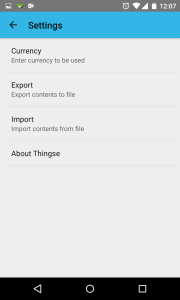
The Preferences in the main screen moved into the overflow menu in the ActionBar. The screen before material design was also shown in a previous post.

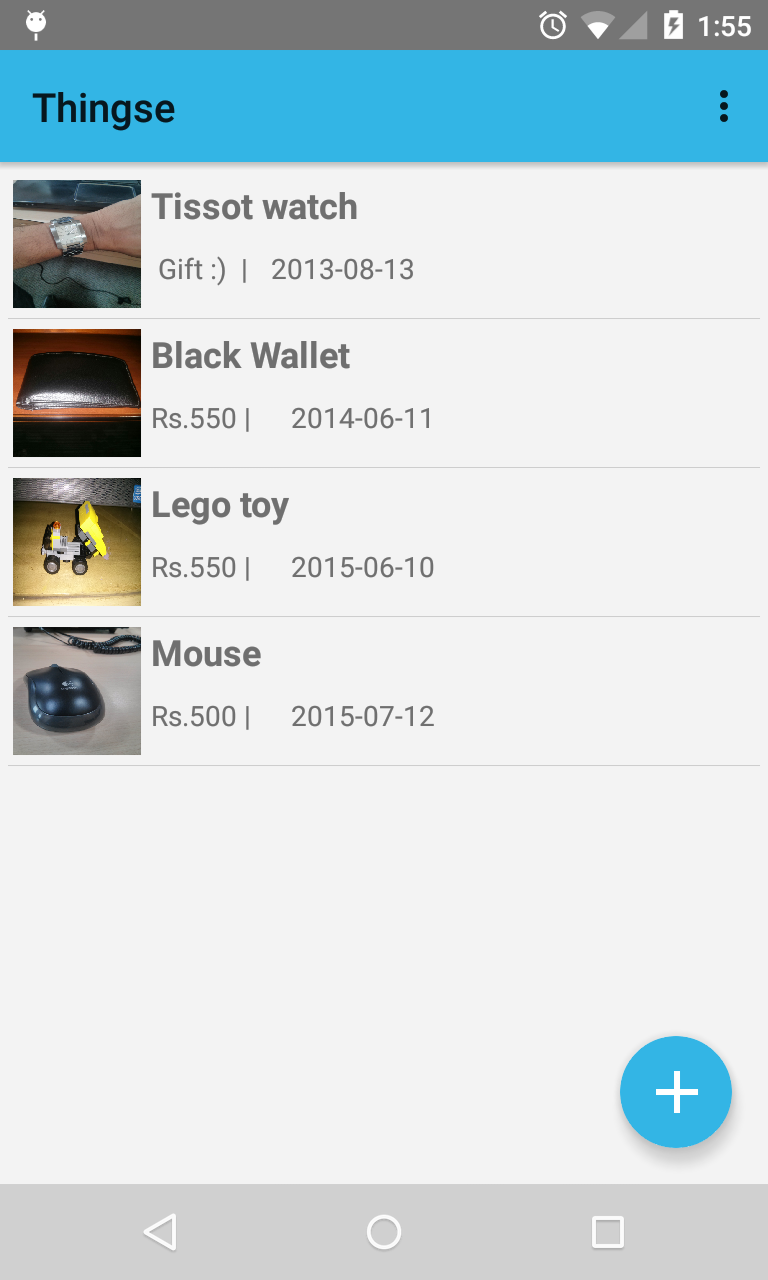
Main screen before (left) and after (right)

Main-before   Main-after

Preferences/settings screen before (left) and after (right)

settings-before   settings-after

Add screen before (left) and after (right). Taking inspiration from the "Add Event" screen in the Google Calendar app, I did away with the static labels and just left them as hints in the corresponding text fields. The icons are also refreshed from the Material Icons 2.0 library.

Add-before   Add-After

The Edit screen looks similar to the Add screen but comes with the values pre-populated. Before (left) and after (right)

Edit-before   Edit-After

View screen before (left) and after (right). With the title and buttons moving to the ActionBar, there is more room for the image to be displayed.

View-before   View-After

Date pickers before (left) and after (right)

Date picker-before   Date picker - after

From a code point of view, adding menu actions to the AppBar is not unique to Material Design; just create the Menu Items and add them to the Menu component.
//menu items for edit and delete
@Override
public boolean onCreateOptionsMenu(Menu menu)
{

menu.add("Edit").setIcon(R.drawable.ic_mode_edit_black_18dp)
.setShowAsAction(MenuItem.SHOW_AS_ACTION_ALWAYS);

menu.add("Delete").setIcon(R.drawable.ic_delete_black_18dp)
.setShowAsAction(MenuItem.SHOW_AS_ACTION_ALWAYS);

return true;

}

To get the changed look for ActionBar and all the other UI components, all you need to do is choose the higher max target API version and change the theme for the application to Material in the android manifest file. There is no code change required to be made to get the material look.

Moving to Material Design: Adding a FAB Button

I had written a simple app called Thingse an year and a half ago to store the list of stuff that I had. The idea was to use this as a "Hello World" to get to learn and understand Android. I tried to follow the Holo theme, the prevailing UI standard at the time, as much as possible.

After a hiatus, I decided to get back to Android programming by converting the app's UI to Material design. The first step was to add the famous and ubiquitous FAB button. The key objective of the FAB button is to promote the single most important action that the app performs. In the case of Thingse, it is to add stuff, so the button would call an add screen.

I looked at the official Android Support library but that seemed to involve too much work. Makovkastar's (Oleksandr Melnykov) Floating Action Button library was simple and easy to use. It is customizable and has many options to handle actions.

To use the library, following are the three main steps:

  • Add the following dependency com.melnykov:floatingactionbutton:1.3.0 to the module's build.gradle file (not the application's build.gradle)


dependencies {

compile "com.melnykov:floatingactionbutton:1.3.0"

}


  • Add the FAB's tag to the layout XML


<com.melnykov.fab.FloatingActionButton
android:id="@+id/fab"
android:layout_width="wrap_content"
android:layout_height="wrap_content"
android:layout_gravity="bottom|right"
android:layout_alignParentBottom="true"
android:layout_margin="16dp"
android:src="@drawable/ic_action_content_new"
fab:fab_colorNormal="@color/primary"
fab:fab_colorPressed="@color/primary_pressed"
fab:fab_colorRipple="@color/ripple" />


  • Instantiate the FAB in the Java code and attach it to a ListView (or other views recommended by the FAB library)


//fab code
FloatingActionButton fab = (FloatingActionButton) findViewById(R.id.fab);
fab.attachToListView(thingsList);

fab.setOnClickListener(new View.OnClickListener() {
@Override
public void onClick(View v) {
//Write here anything that you wish to do on click of FAB

// Code to Add an item
Log.i("ThingseActivity", "FAB clicked");
startActivity(new Intent(ThingseActivity.this, AddSomething.class));

//Ends Here
}
});

Having done the above steps, you will get a FAB as shown in the screenshots below.

The earlier main screen of the app looked like this:

Main-before

After adding the FAB button, the screen now looks like this:

Main-after

There are some layout issues that remain on the landscape mode. The empty view on the list pushes the FAB out of the screen. But on the portrait mode, it works flawlessly.

Moving to Android Studio

After a gap of an year, I decided to get back to Android app development. I learnt that ADT for Eclipse is no longer the IDE of choice and Android Studio is the official IDE. The installation of Android Studio was painful with the following error related to the tools directory refusing to go away even after several retries.

Studio err1

Eventually, it got installed but I still do not know how. I do not recall the ADT installation being so irritating. I learnt later that others did not have the same error... Strange.
I hope the rest of the features in the IDE make up for this annoyance. As I get more familiar with the IDE, I find that there are indeed features that make it worthwhile. For instance, when an external library is listed in the dependencies in the application module's build.gradle file, the Studio itself (or IntelliJ) will pull it from the remote location. No need to actually download, provide the file location etc.